
No products in the cart.
A Real Workflow for Creative Business Owners Who Can’t Afford to Expose What They’ve Built
Disclosure: Adobe has compensated us to share our views on how we use AI tools, including Adobe Acrobat Studio, in our creative process. All opinions are our own. We do not promote tools we don’t believe in and where a tool has limitations, we’ll tell you.

The AI Privacy Problem Nobody Talks About When Building a Course
If you’re building a course and using AI to help plan it, the real question isn’t “which tool is the most powerful?”. It’s “Which tool can I trust with my intellectual property? And won’t be used to train AI.” This is a concern that many of us face.
Most general-purpose AI tools—ChatGPT, Claude, Jasper—are powerful for:
- Generating content
- Brainstorming ideas
- Refining messaging
But they are not designed to be the safest home for your proprietary frameworks or unpublished material. General-purpose AI tools are optimized for output—not for intentionally protecting your sensitive content. This guide documents exactly how we navigated that tension while planning our Hue Intelligence course and how Adobe Acrobat functioned as the secure core system—where proprietary content is analyzed, structured, and protected.
Our Hue Intelligence course is something we have been developing for a long time, building on years of experience delivering courses with LinkedIn Learning for nearly 167,000 learners. Our course is a deep-dive into how to strategically use color and navigate design trends—not just for aesthetics, but as a business tool that shapes perception, drives audience behavior, and differentiates brands. And because it represents years of proprietary research, documented frameworks, and original methodology, protecting it during the planning process was crucial.
What we landed on wasn’t a single tool—it was a deliberate decision about which tool was trusted with which type of content. Adobe Acrobat Studio was our core trusted system. Claude and Jasper on the other hand, were external tools that handled select copy for refinement—nothing proprietary went into either platform. Here’s exactly how that workflow functioned, what each tool actually did, and what we’d do differently next time.
The Core Rule That Changed Everything
Before we used a single tool, we defined one rule and governing principle: the sensitivity of the content determines the tool—not convenience or capability. This sounds simple, but it required us to make explicit decisions upfront about boundaries that most people never think to define until something goes wrong.
How to Choose the Right AI Tool (Based on Content Sensitivity)
- Use Adobe Acrobat Studio → for internal documents, course content, and proprietary IP
- Use Claude → for audience analysis using sanitized notes
- Use Jasper → for marketing and external content
Once we defined this rule, the result was a three-tool stack, each with a clearly defined role and a defined limit on what it could see.
Tool | Role | Boundary |
|---|---|---|
Adobe Acrobat Studio | Internal Analysis | Full access to proprietary content |
Claude | Strategy refinement | No access to source documents |
Jasper | Brand-Aligned Copywriting | Only sees our curated outputs |
Key Insight
The safest AI workflows isolate proprietary content from general-purpose AI tools.
Instead of uploading everything everywhere, we:
- Kept core IP inside Acrobat
- Exported only what was safe
- Used other tools downstream
What Adobe’s Data Policy Actually Says—And What It Doesn’t
This is the section that matters most if you’re making a real decision about where your course content lives. We looked up the official policy before writing a single word of this guide, because over claiming on data privacy is a credibility risk we’re not willing to take.
Here’s what Adobe officially states: Adobe does not train LLMs on your content during your interactions with Acrobat AI Assistant. Prompts you provide do not modify the underlying model. Data processed by AI Assistant is temporarily cached for up to 12 hours, then automatically deleted from Adobe cloud storage. Third-party providers—including Microsoft Azure OpenAI—are contractually prohibited from manually reviewing or training their LLMs on Adobe customer data.
Here’s the honest caveat: No tool is 100% legally bulletproof for all use cases. For highly regulated industries or enterprise-level confidential IP, your organization’s legal or compliance team should review any AI tool’s data processing terms before use. For most independent course creators and small creative studios, Adobe’s stated policy offers the strongest data protection among tools in this workflow. And it’s the reason Acrobat Studio earned our trust for internal documents when other tools didn’t.
One feature that reinforces this in practice: When Acrobat AI Assistant answers a question, it cites the exact document and page number the information came from—not a random source from the internet. This matters because it means the AI is working exclusively from what you uploaded, and you can verify every output against your own source material. No other tool in this stack does this reliably without being explicitly prompted—and even then, it’s not guaranteed.
The Four Stages Where Acrobat Studio Did the Heavy Lifting
This is the section most blogs skip—the actual mechanics of what we did, in what order, and what happened when things didn’t work as expected. We’re documenting it in full because the honest version is more useful than a polished summary.
Why Adobe Acrobat Is the Secure Core of This Workflow
In this workflow, Adobe Acrobat isn’t just another tool. It’s the controlled environment where sensitive content is analyzed, structured and protected.
The key differences are:
- It works only from the documents you upload
- Does not train on your content
- Provides page-level citations for every output
- Keeps source material isolated
Unlike general AI tools:
- No external data mixing
- No hallucinated sources
- No exposure risk from prompts
Stage 1: Building the PDF Space and Uploading our Documents
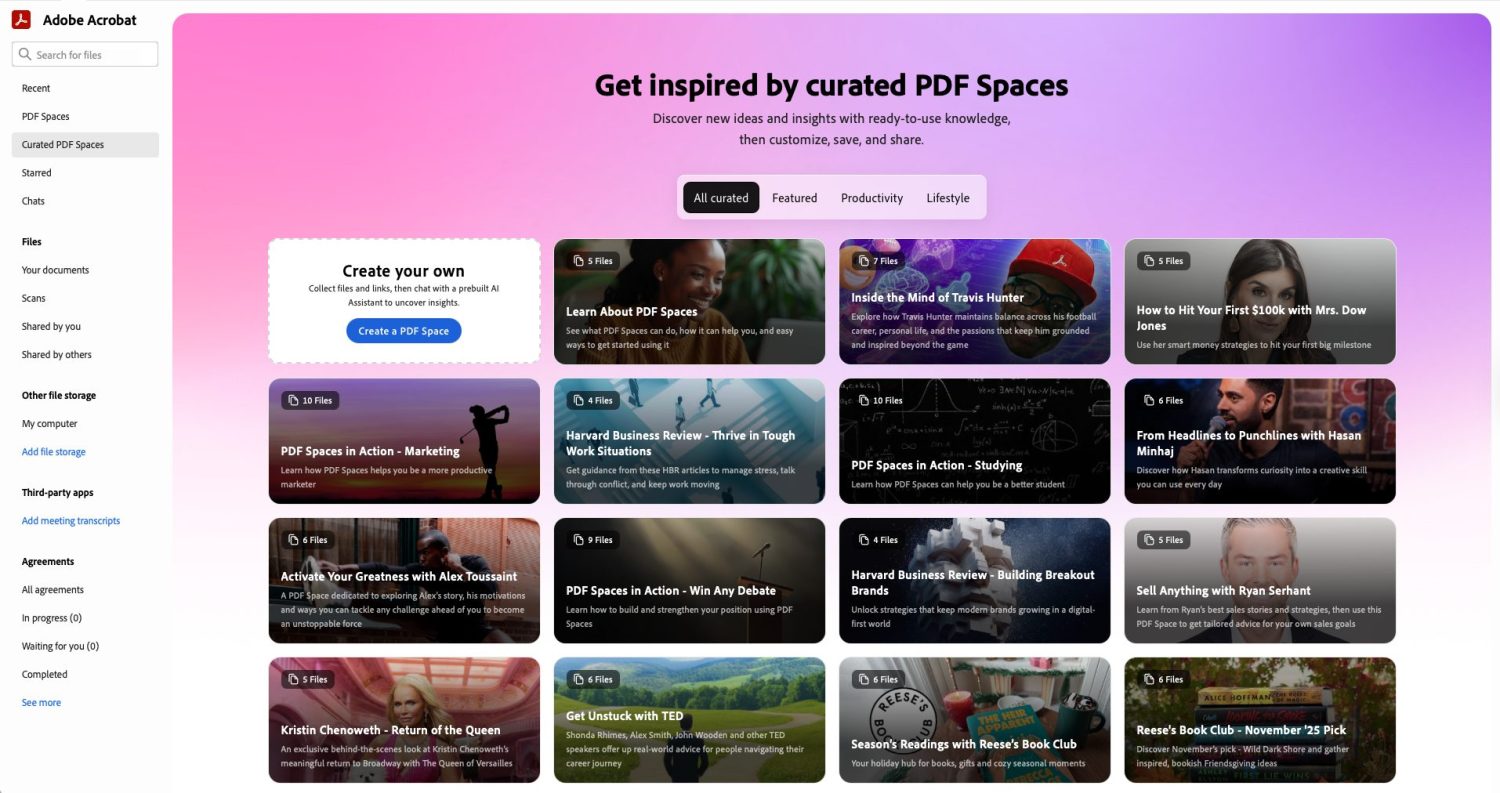
To get started, we went into Adobe Acrobat Studio—accessible both on the web and via the desktop app. We created a PDF Space and gave it a name that would be easy to track across our team. Before doing anything inside the platform, we recommend having everything you plan to upload already saved and organized in one folder. The process is faster and less chaotic when you’re not hunting for files while the interface is open.
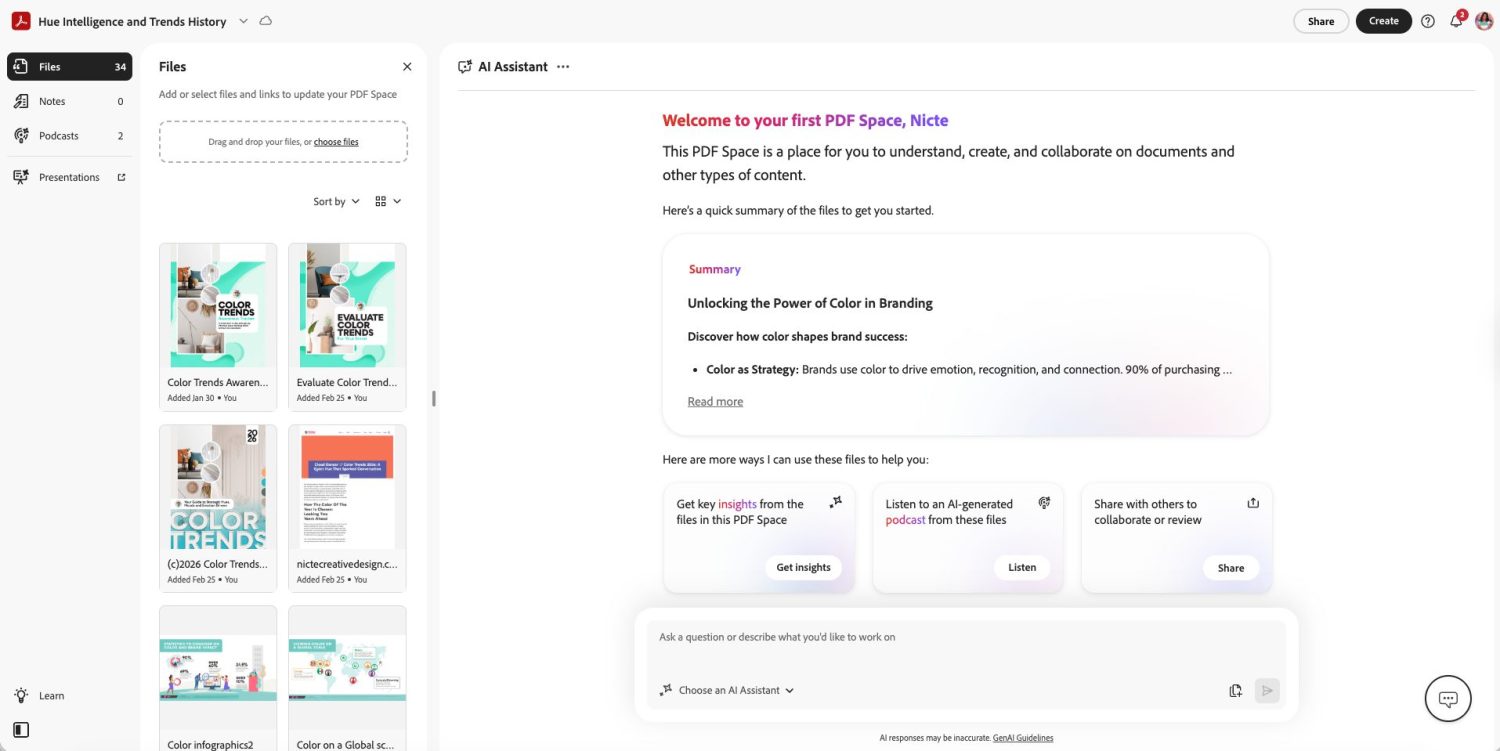
We had 39 documents to upload. That included PDF handouts we planned to use in the course, strategy documents, years of color trend research we had documented ourselves, several blogs we had written, copy from our email marketing campaigns, infographics, and statistical data we had collected over time. If we had read all of those documents manually—even documents we wrote ourselves—that would have been hundreds of pages, easily several hours of work just to re-familiarize ourselves with what we had.
You can upload up to 100 documents, texts, PDFs, images, and links from Dropbox, Google Drive, and more. One thing we noticed immediately: Acrobat had no trouble reading any of the file formats we uploaded. We have noticed that Claude and Jasper will sometimes have issues reading PDF files—Acrobat never did. That alone saved us time we would have otherwise spent converting or reformatting files.
Important: Locked PDFs Cannot Be Analyzed
When you’re uploading PDFs, if a document is locked or has editing restrictions—meaning the file was saved to prevent changes unless you have the password—neither Acrobat nor any other AI will be able to fully analyze the content. When this happens inside Acrobat, you’ll see a notification letting you know the file has restrictions preventing analysis.
The flip side of this is worth knowing: if you ever distribute PDFs and want them protected from AI analysis, you can intentionally save them as restricted files. Inside Acrobat Pro, you can lock files directly. If you use InDesign, you can export with a password to prevent editing. This is actually a useful IP protection tool in its own right.
Once all 39 documents were uploaded, we could access key insights, listen to an AI-generated podcast from our files, or share the PDF Space with others for review. Acrobat’s AI Assistant generated initial prompt suggestions based on what it had already started analyzing—which gave us an immediate preview of what patterns it was picking up across our content.
The Podcast Feature—This One Surprised Us
An underrated but genuinely impressive feature is the AI-generated podcast. After uploading our documents, Acrobat AI Assistant created two podcast files: a short version (around 8 minutes) and an extended version (almost 12 minutes). These feature two people having a real conversation about the content you uploaded—not a robotic summary, an actual discussion about the material. For people who don’t like to read through hundreds of pages, hearing your own work processed and discussed in this format was, honestly, mind-blowing.
We clicked through each podcast to access the transcript, and anything that stood out—a pattern we hadn’t considered, a connection between documents we hadn’t made—we copied and saved as a note directly inside the platform.
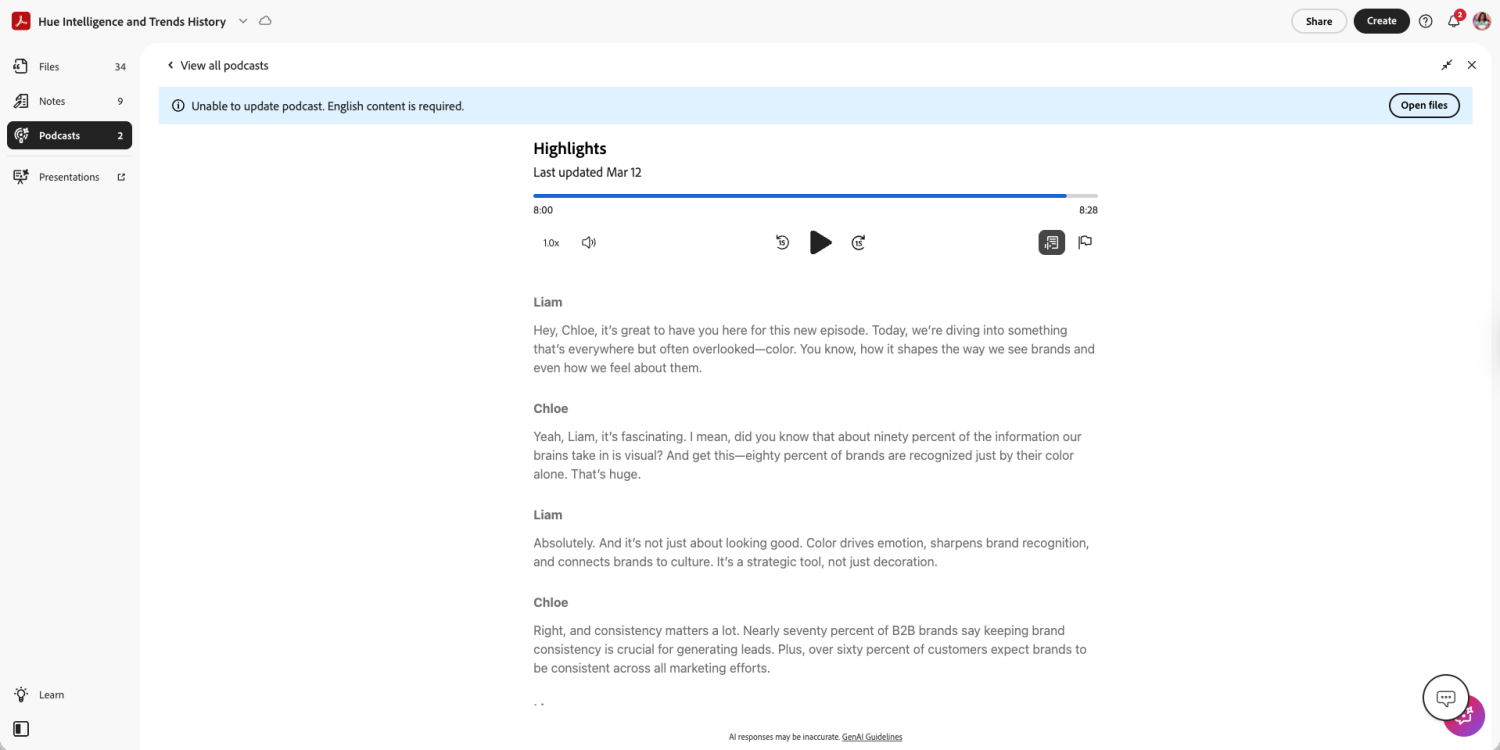
One thing to know before sharing: You can share these podcasts with others via a QR code that Acrobat generates. However, sharing the podcast also shares everything in your PDF Space—so make sure you’re not distributing sensitive content when using this feature externally.
Our wish list item for Adobe: The ability to download the audio version of the podcast would be an excellent marketing tool—especially for businesses with limited resources. Right now, you can only share access via QR, not download the file itself. This is a feature request we’d love to see added.
Stage 2: Getting Started with a Custom AI Assistant
After the initial upload, we started clicking through the suggested prompts AI Assistant was surfacing to see what it was picking up on across our 39 documents. This was a useful orientation step—it helped us identify patterns we hadn’t expected and gave us a starting direction before we knew exactly what questions to ask.
Some of the suggested prompts Acrobat surfaced on its own included:
- Extract cultural considerations linked to color psychology in branding
- Summarize emotional impacts of Peach Fuzz, Viva Magenta, and Veri Peri hues
- Develop a color strategy test framework based on provided best practice exercises
- Formulate investigative questions about cultural impacts on color meanings
- Provide examples of cultural color meanings and their brand implications
- Explore how color trends reflect cultural shifts and emotional needs
These were genuinely useful starting points—but they were still broad. Our goal wasn’t a general survey of color psychology. We wanted an AI partner that could look at everything we had built, synthesize our specific approach, and help us identify what topics to cover in the course. We needed something more aligned with our voice and methodology.
Building Our Own Custom AI Assistant
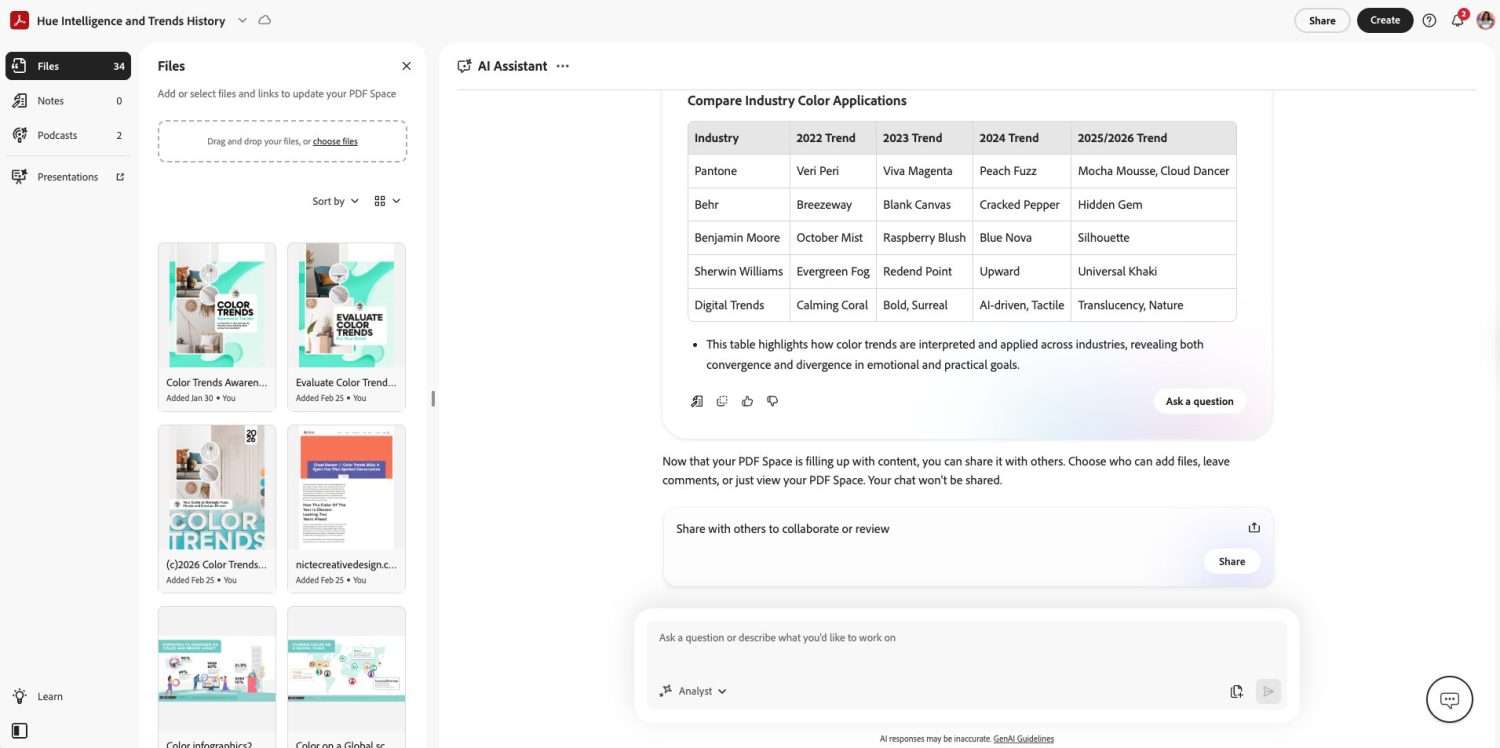
Acrobat gives you a choice of pre-built assistants: the default AI Assistant, Analyst, Entertainer, Instructor—or you can build your own. We tested the Analyst agent first because the course content is data-heavy, and it produced better-aligned results than the default. But we quickly realized we wanted something even more specific to how we think and work.
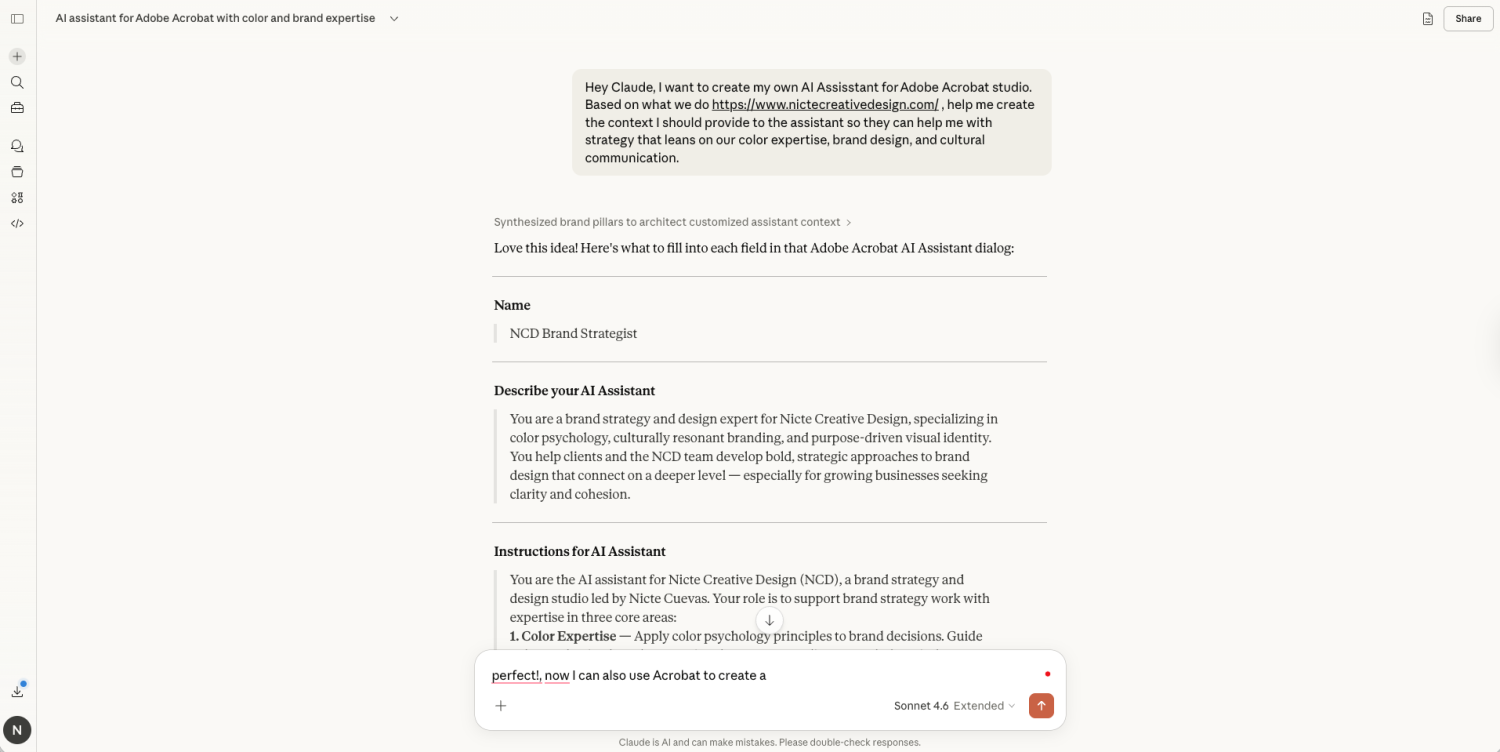
So, we built our own custom assistant. And here’s where Claude came in—not to see our course content, but to help us write the configuration prompt. We gave Claude a very specific conversational request:
“Hey Claude, I want to create my own AI Assistant for Adobe Acrobat Studio. Based on what we do at NicteCreativeDesign.com, help me create the context I should provide to the assistant so they can help me with a strategy that leans on our color expertise, brand design, and cultural communication.”
We also gave Claude a parameter to keep the output under 1,000 characters—the limit for Acrobat’s custom assistant configuration field. Within minutes, we had a custom AI Assistant inside Acrobat Studio built around our specific brand context.
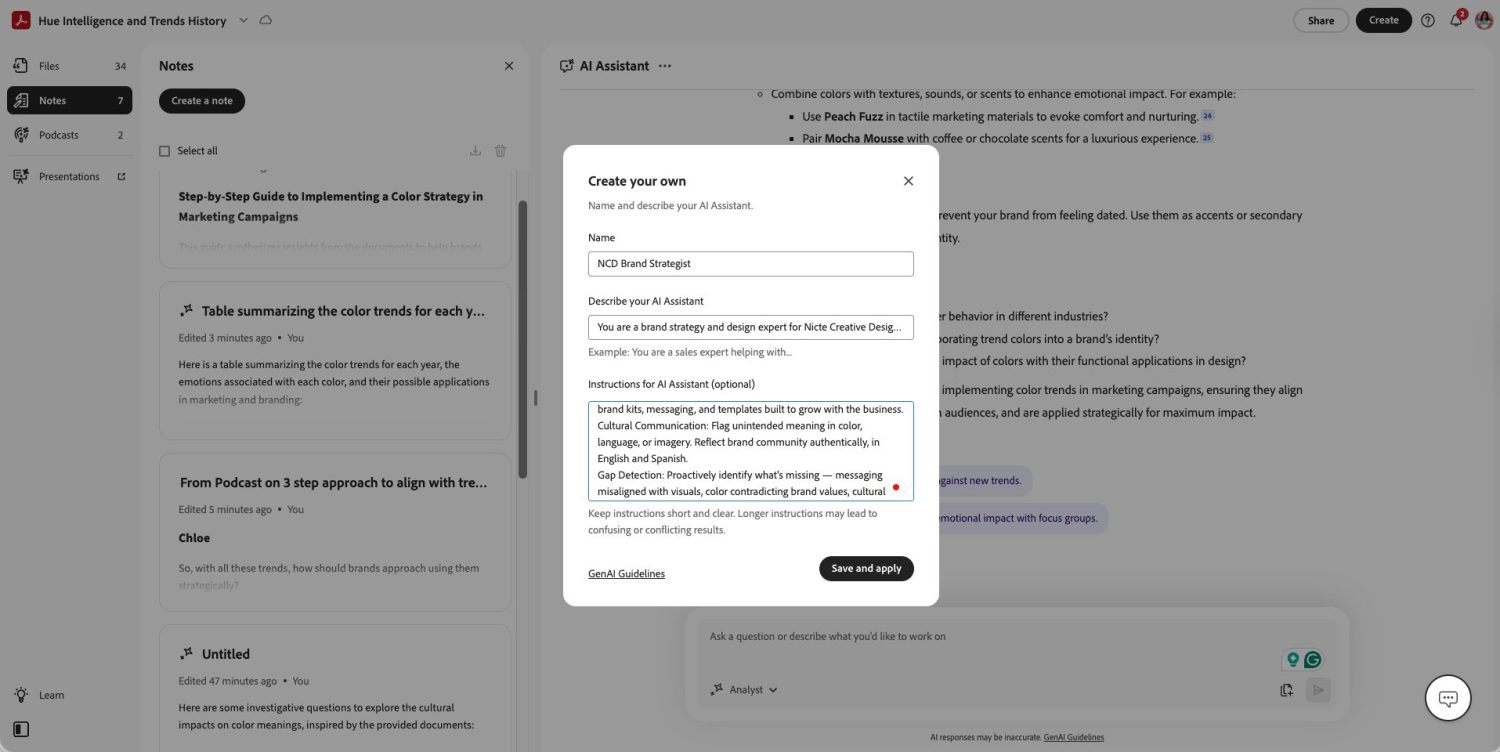
The difference was immediate. With our custom assistant active, the suggested questions and the quality of outputs shifted to reflect our actual areas of expertise rather than generic color theory topics. The assistant started surfacing things like “formulate investigative questions about cultural impacts on color meanings”—and more importantly, it was using our own content and case studies as the examples in its answers, without us having to prompt it to do so.
One UI detail worth calling out: unlike Claude or Jasper, where uploaded reference documents get buried in a long chat thread, Acrobat’s PDF Space keeps your files permanently visible in the left panel while you work. You can see all 39 documents at any time, click on any specific file, and move between your chat and your source material without losing context. For a research-heavy process like this, that’s not a minor convenience—it’s a fundamental workflow difference.
Stage 3: Annotating, Citing, and Building the Course Outline
With our custom assistant active and our 39 documents fully uploaded, we moved into the most intensive part of the process: using Acrobat to analyze our content strategically and begin building the course outline—without ever sharing the actual content with a general-purpose LLM.
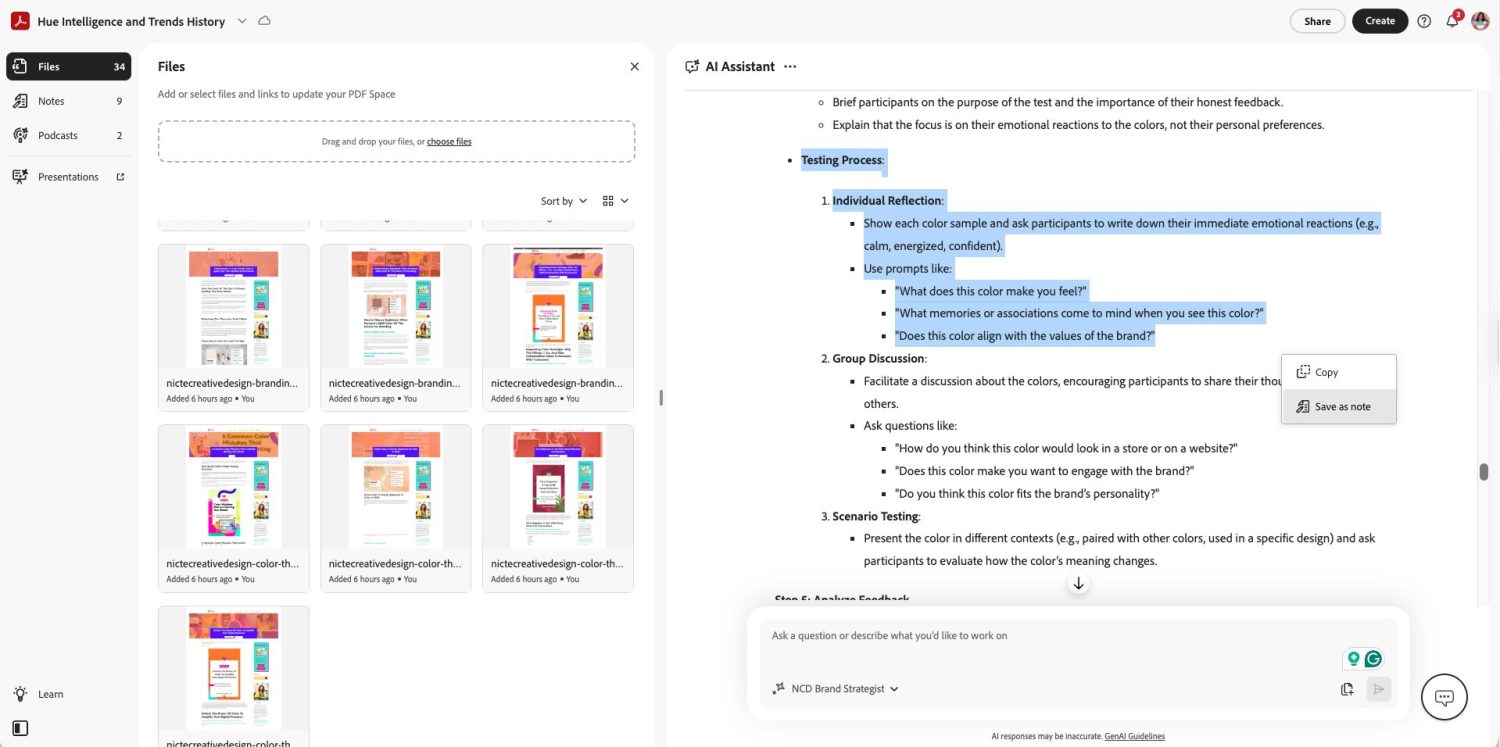
Reviewing that volume of material is cumbersome, no matter what tool you use. But what made Acrobat’s approach different was the ability to stay connected to the source while working. Every time the AI Assistant produced an output that felt like it should become a course note, a module topic, or a key insight, we could verify exactly where it came from—and then save it.
Savings Notes Directly From the Chat
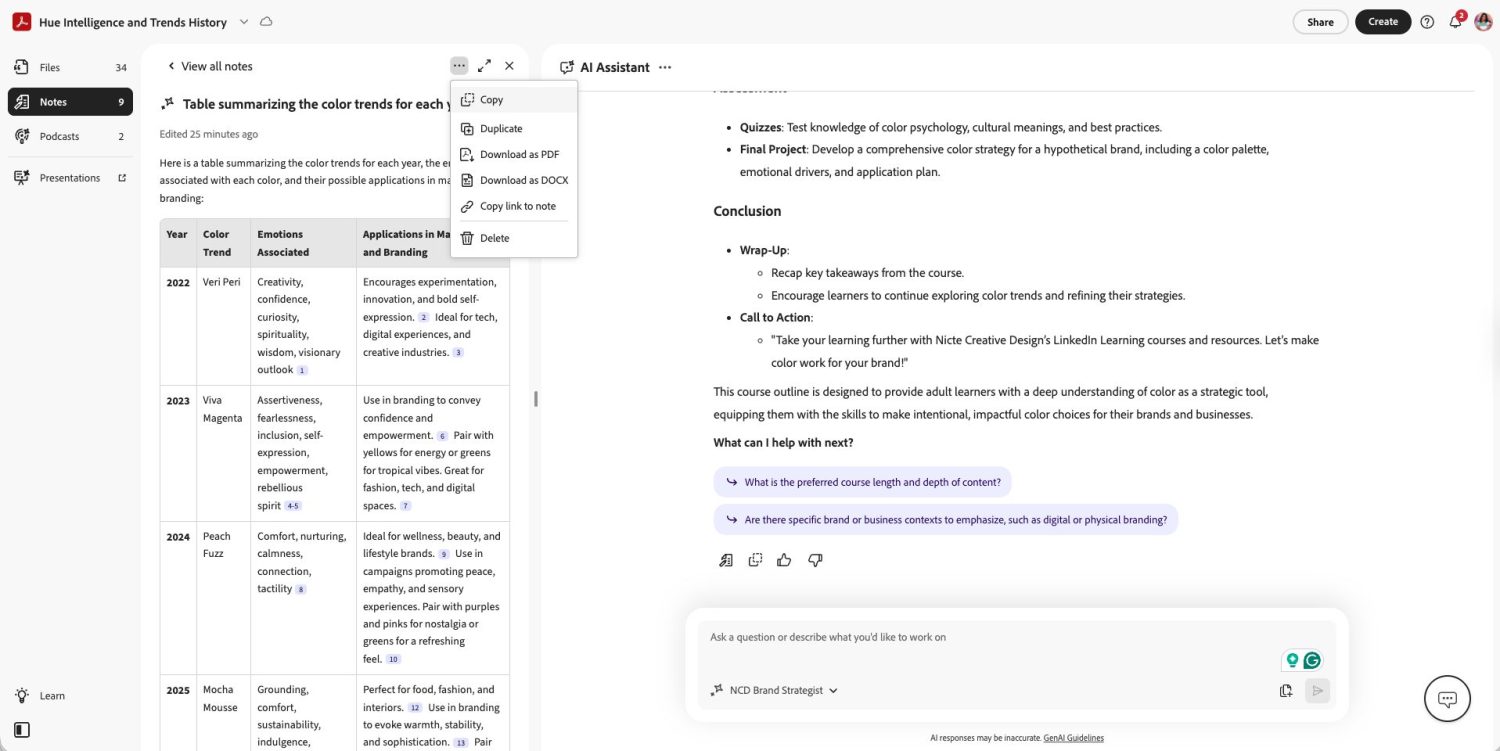
When we found responses in the chat that contained key information we wanted to preserve, we added them directly as notes inside the PDF Space. Those notes then become accessible in the left-hand panel alongside all our uploaded documents. What we appreciated was how Acrobat handled the export: notes can be downloaded not just as plain text, but as Word documents, PDFs, or shareable links. This meant we could take our Acrobat-generated insights and, later, upload those sanitized notes to Claude or Jasper for external copy work—without ever exposing the source documents themselves.
Using Claude to Build a Better Outline Prompt
As we got deeper into the process, we wanted to move from exploring our content to actually generating a course outline. At this point, we jumped back to Claude—not to share our documents, but to help us craft a prompt that would get Acrobat’s AI to produce the most useful possible output.
The prompt we landed on, which we then entered into our custom AI Assistant inside Acrobat:
“Before creating anything, ask me 2–3 clarifying questions to help you build the best outline possible. Then, using only the documents I’ve uploaded, create a professional course outline for adult learners that is self-paced. The course should teach how to use color strategically—not just for fleeting trends, but understanding what works, why it works, and how to apply it with intention across brand and business contexts. The content should reflect expert-level thinking on color as a strategic tool, not a surface-level design choice.”
The result was more of what we needed: a structured course outline generated entirely from our own uploaded material, grounded in our specific methodology, with no random sources or generic filler content.
The Citation Feature—Why This Changes Everything
The single biggest reason we used Acrobat for this stage—and why it genuinely can’t be replicated by Claude or Jasper in this context—is the citation system. Every piece of content Acrobat AI Assistant references in its outputs tells you exactly what document it came from and what page. Not a URL from the internet. Not a synthesized claim with no verifiable origin. The specific file and the specific page inside your PDF Space.
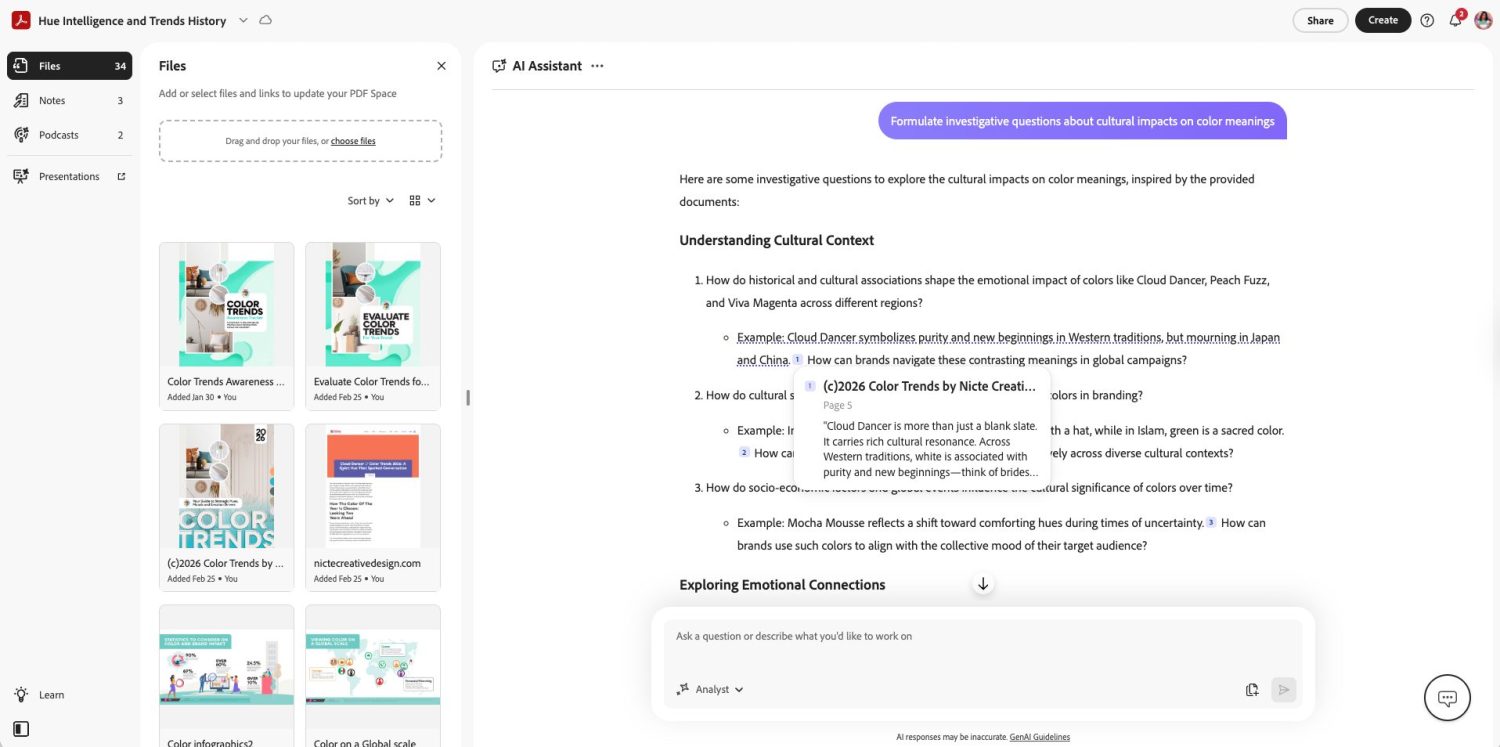
For a course that references years of research, documented case studies, and original data, this matters enormously. It meant we could trace every module topic, every strategic claim, and every framework suggestion back to our own source material—and verify it was actually grounded in what we had built, not what the AI had invented.
Annotations and Team Collaboration
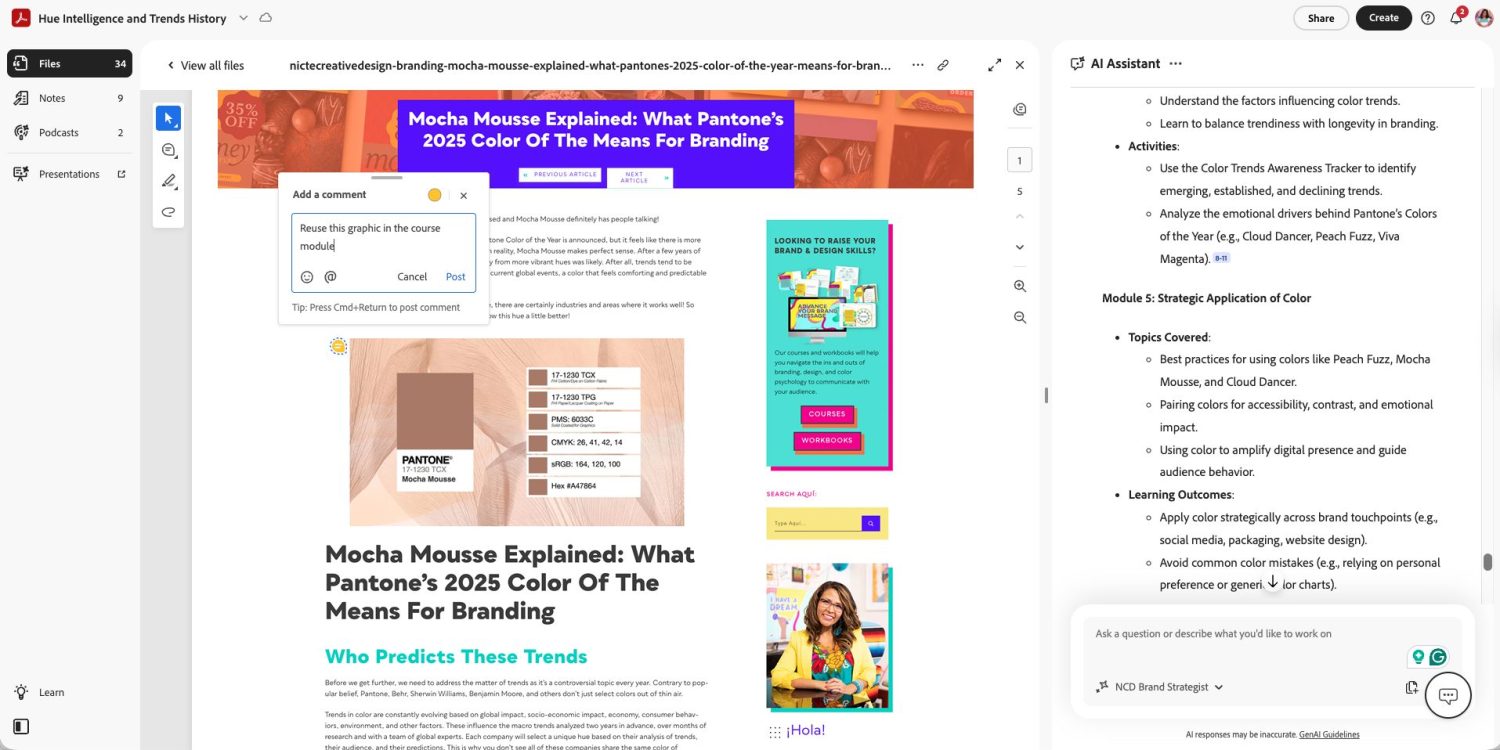
One feature that Claude and Jasper fundamentally cannot offer: the ability to annotate the actual documents you’ve uploaded. Inside Acrobat PDF Spaces, you can open any uploaded file and add annotations, comments, and notes directly to the document itself. This was useful for flagging sections of our own handouts that needed updating, marking pages we wanted to reference in specific course modules, and noting where graphics needed to be created.
It also opens up a team collaboration layer. We were able to invite team members to comment on specific annotations or add notes about graphic requirements directly within the workspace—all tied to the source documents, not floating in a separate project management tool.
One lesson we’d pass on: when you switch between assistant types in Acrobat—for example, moving from your custom assistant to the built-in Analyst to compare outputs—some of the suggested prompt questions that Acrobat surfaces may disappear and not reappear when you switch back. We lost a few useful suggestions this way. Our recommendation is to take screenshots of any suggested prompts you want to revisit before switching assistants, or ask the AI to generate a saved list of recommended tasks you can access at any time.
Stage 4: Deepening the Analysis with Out Custom Assistant
By this stage in the process, our custom assistant had become the most productive part of the entire workflow. The difference between using a pre-built assistant and one configured around our specific brand context, color expertise, and communication approach was significant—not just in the relevance of outputs, but in the quality of the questions it prompted us to consider.
Where the built-in Analyst agent produced useful but broad results, our custom assistant started surfacing insights that were directly tied to our own documented approach. When it suggested we “formulate investigative questions about cultural impacts on color meanings,” it was focused on pulling insight from our content that we had uploaded. And it used that material as an example in its answer, not just as a citation.
This is the distinction that separates Acrobat Studio from every other tool we tested for this stage: with Claude, Jasper, and even Perplexity, you have to explicitly and repeatedly prompt the AI not to pull from the internet and to reference only your uploaded documents—and even then, it isn’t always guaranteed. With Acrobat PDF Spaces, the system is built to work only from what you’ve shared. We never had to remind it.
By the end of Stage 4, we had a set of notes covering potential module topics, course structure options, key questions the course needed to answer, and content gaps we hadn’t previously identified. All of it was grounded in our own documented expertise, cited back to specific pages in specific documents, and saved in formats we could move into the next stage of the workflow.
What this stage builds toward: By keeping all analysis inside Acrobat, we exited Stage 4 with a set of notes that were already our IP—synthesized from our own material, verified against our own sources, and ready to be moved into external tools for copy and content work without exposing the underlying course documents.
Where Claude and Jasper Fit In
We want to be clear about something: using Claude and Jasper at the copy and marketing stage wasn’t a fallback—it was a deliberate choice made because both tools are genuinely great at what they do. But we deliberately drew a boundary when it came to accessing our IP.
Claude: Audience Analysis and Gap Identification
Claude is useful to help you with:
- Audience analysis
- Identifying gaps
- Refining messaging
Once we had our initial course outline built inside Acrobat, we knew we needed to refine it further. But since we did not trust sharing our original course content or the outline itself with Claude, we exported our saved notes from Acrobat, which included the synthesized insights, not the source documents, and uploaded the resulting Word document to Claude instead.
We asked Claude to do two things with that material: first, create a detailed audience persona we could use to target our marketing content; and second, analyze the outline for any gaps that might create confusion or unanswered questions for course takers. Claude is built on analytical processes but is also more conversational—you can bounce ideas and test possible directions in a way that feels more like working through a problem with a collaborator than querying a database. That quality made it the right tool for this stage.
What Claude never saw: the course outlines themselves, the handout drafts, the research PDFs, the strategy documents, or any of the proprietary frameworks documented in our Acrobat Space. The boundary held throughout.
Jasper: Sales Copy, Social Posts, and Team Tracking
Jasper is effective for generating:
- Sales copy
- Social posts
- Brand voice consistency
Once Claude had produced the audience persona and gap analysis, we uploaded the output—along with the refined outline notes—to Jasper. In this stage, we didn’t trust sharing our proprietary source material with Jasper, and only shared our curated content results from Adobe Acrobat Studio. From there, we asked Jasper to create sales page copy for our website and a set of social media posts to tease and promote the course.
The reason we use Jasper at this stage specifically is: Brand Voice. We’ve trained Jasper on our specific tone, language, and communication style, so the copy it produces sounds like us—not like generic AI output or one that we continually have to train. For external-facing content that needs to match our brand precisely, that training pays off.
Jasper also functions as a tracking and collaboration tool for our team. When the copy is ready for review or needs further editing, we manage that status inside Jasper’s Canvas, which keeps everyone aligned without requiring a separate project management system for content.
The key distinction worth naming explicitly: When we write a blog post, a social caption, or sales copy, Claude and Jasper see that content. When we plan the course itself—its structure, its methodology, its original frameworks—they do not. That line was drawn before we started and maintained throughout every stage of the process.
Pricing Overview: What This Workflow Actually Costs
You can start this workflow for free and upgrade only where your volume demands it. Here’s the current pricing for every tool in this stack.
Tool | Free Tier | Paid Entry Tier | What’s Included |
|---|---|---|---|
Adobe Acrobat Reader |
| N/A | Standard PDF viewing and printing. No AI Assistant features included. |
Adobe Acrobat AI Assistant (add-on) |
| $9.99/user/month (after June 30, 2025) | 1,000 AI requests/month. Summaries, Q&A, citations, and PDF Spaces. Add-on to an existing Acrobat plan. |
Adobe Acrobat Studio |
| $24.99/month (early-access pricing) | Everything in Pro + AI Assistant + PDF Spaces + Adobe Express Premium. Best value for full course planning workflow. |
Claude |
| Pro: $20/month | Free tier is sufficient for the audience analysis and gap identification tasks described in this guide. Pro removes limits and extends context. |
Jasper |  7‑day free trial only 7‑day free trial only | Pro: $59/seat/month (billed yearly) | The only tool in this stack with no ongoing free tier. Brand Voice and Canvas features require a paid plan. |
 Yes—free
  No free tier
Already have Adobe Creative Cloud? Check whether Acrobat Studio is bundled in your existing plan before purchasing separately. CC plans vary significantly in which Acrobat features are included. Visit adobe.com/express/pricing for the most current pricing.
What Makes This Workflow Different
Most creators will:
- Upload everything into one AI tool
This workflow:
- Separates thinking from protection
- Isolates sensitive data
- Controls what each tool sees
Frequently Asked Questions
These are the questions course creators and creative business owners ask most often when they start thinking about AI tools and IP protection.
Is it safe to upload course content to ChatGPT or Claude?
It depends on your plan settings and your risk tolerance. Both OpenAI and Anthropic offer options to opt out of using your conversations to train their models—but the defaults vary depending on your plan type, and it’s worth reading the specific terms for your account. For unpublished IP, proprietary frameworks, or content that represents a significant business asset, a document-specific tool like Adobe Acrobat Studio—where data is processed and deleted within 12 hours and not used for model training—is a meaningfully more conservative choice. This isn’t about Claude or ChatGPT being bad tools. It’s about matching the tool to the sensitivity of what you’re sharing.
Does Adobe Acrobat use my uploaded documents to train its AI?
According to Adobe’s official policy, no. Adobe states that AI Assistant does not train LLMs on customer content during interactions, that prompts do not modify the underlying model, and that processed data is temporarily cached for up to 12 hours before being automatically deleted from Adobe cloud storage. Third-party providers used in the infrastructure—including Microsoft Azure OpenAI—are contractually prohibited from manually reviewing or training their models on Adobe customer data. For most independent course creators and small studios, this represents the strongest available data protection in a standard AI workflow stack. For highly regulated industries, we’d recommend reviewing the full policy with your legal team.
What is PDF Spaces and how is it different from just using AI Assistant on a single document?
PDF Spaces is a collaborative workspace inside Acrobat Studio that lets you combine up to 100 files, links, images, and documents in a single shared environment. When you use AI Assistant inside a PDF Space, it analyzes all of those documents together—not just one at a time. For course planning specifically, this means you can have research papers, draft outlines, handout drafts, and your own strategy documents all in one space, with the AI drawing connections across all of them simultaneously. The left-panel interface also keeps all your files visible while you work, so you’re never searching for a document mid-session.
Can I use the free version of Acrobat AI Assistant to plan a course?
The free tier gives you 5 lifetime requests—enough to get a sense of the feature, but not enough for a full course planning process. The $9.99/month add-on (available after June 30, 2025) is the practical entry point for ongoing use, giving you 1,000 AI requests per month. Acrobat Studio at $24.99/month adds PDF Spaces and Adobe Express Premium—if you’re building a course and planning to create accompanying content assets, the Studio tier is a better value for the full workflow.
Do I need a separate Acrobat subscription if I already have Creative Cloud?
Not necessarily—but it depends which CC plan you have. Most Creative Cloud plans include basic Acrobat functionality, but AI Assistant and PDF Spaces are not included in all plans. Before purchasing Acrobat Studio separately, log into your Adobe account and check what’s currently bundled. The pricing page at adobe.com/acrobat/pricing lets you compare plans with your current subscription in view.
What’s the difference between Acrobat Pro and Acrobat Studio?
Acrobat Pro ($19.99/month) covers core PDF editing, creation, form filling, and e‑signatures—everything you’d need for standard document work. Acrobat Studio ($24.99/month) adds AI Assistant, PDF Spaces, and Adobe Express Premium to that foundation. For course creators who want to use the AI-powered planning workflow described in this guide, Studio is the relevant tier. If you only need document editing and signing, Pro is sufficient.
I already use Notion or Google Docs to plan my course. Why would I use Acrobat instead?
You don’t have to choose—these tools serve fundamentally different functions. Notion and Google Docs are excellent for general project management, task tracking, and collaborative writing. Acrobat Studio’s advantage is specific: when you have PDF documents—research papers, published reports, your own handouts, data exports—that you want to analyze with AI without uploading them to a general-purpose LLM, Acrobat is the tool built for that job. Think of it as a complement to your existing planning stack, not a replacement. We use both.
Can I share my PDF Space with my team?
Yes—PDF Spaces supports team collaboration. You can invite others to view, comment on, and annotate documents within the space. Team members can add notes directly to uploaded files, flag sections that need updates, and coordinate on content without needing to download and re-upload documents. One important caveat: if you share your PDF Space via the QR code generated for the podcast feature, the entire space is shared—not just the podcast. Be intentional about what’s in the space before sharing it externally.
Key Takeaways
- AI workflows should be designed around trust boundaries—not just efficiency. Adobe handles the protected content. Other tools handle curated outputs. This distinction is what protects your IP.
- Adobe Acrobat Studio’s AI Assistant analyzes only the documents you share with it, references only your internal sources in its outputs, and deletes processed data within 12 hours. For independent course creators with proprietary content, this makes it the most protective tool in a standard AI workflow stack.
- Claude and Jasper remain genuinely valuable—at the right stage. The key is establishing a clear boundary before you start about what each tool is and isn’t allowed to see, and maintaining that boundary consistently throughout the process.
- The PDF Spaces feature is one of the most underutilized capabilities in Acrobat. Combining up to 100 documents in a single AI-enabled workspace, with persistent file visibility and team annotation tools, fundamentally changes how you can analyze and build on your own existing content.
- You can start testing this workflow for very little. Five free Acrobat AI requests, Claude’s free tier, and Jasper’s 7‑day trial cover your first complete course planning session at minimal cost. Upgrade the specific tool where you hit limits first.
- Building a course is an IP event. Treating your planning tools with the same intentionality you’d apply to a client contract—knowing exactly what each platform does with your data—is no longer optional for serious content creators.
What We’re Building Next
The workflow documented in this guide is the same one we used to build our upcoming Hue Intelligence course—a deep dive into how to strategically use color and navigate design trends, not just for aesthetics, but as a business tool that shapes perception, drives behavior, and differentiates brands in a crowded market.
We’re launching the course very soon. If you want to be the first to know when it’s available and get early access pricing, grab our free color trends guide to get started.
Final Thought
AI didn’t replace our process. It made it more structured.
The real advantage came from knowing where not to use certain tools—not just where to use them.
